
If your team already keeps a list of attendees, course completions, or event registrations in a Google Sheet, the next step is easy to guess. You want to turn that list into certificates without typing each name into a design tool one at a time. Operations teams, teachers, HR staff, and event organizers all search for the same thing, and that is what this guide covers.
Below, we look at the main ways to turn a Certificate Generators with Google Sheets into a batch of certificates, the tools that do this well, and where each one starts to fall short as your list grows.
Why Google Sheets Is Where So Many Certificate Workflows Start
Most organizations do not start with a fancy credentialing system. They start with a spreadsheet, because that is where attendance lists, registration exports, and completion records already sit. One row per person, with columns for name, email, course, and date. It is the simplest database there is, and it is already sitting in your Google Drive.
The trouble starts when it is time to turn that spreadsheet into something you can actually hand out. Copying each name into a certificate template in Canva or Word by hand is fine for ten people. It becomes a real time drain at fifty, and it just does not work at a few hundred. This is the gap that Google Sheets certificate generator are meant to close. They connect the data you already have to a certificate design and produce a ready-to-send file for every person automatically.
What to Look for in a Google Sheets Certificate Generator
Not every tool that says it works “with spreadsheets” handles the job the same way. Before you pick one, here is what separates a genuinely useful generator from a clunky mail-merge workaround:
- Direct spreadsheet import or connection. Can you upload the sheet as is, or does the data need reformatting first?
- Column mapping. Can you match spreadsheet columns to certificate fields, like name, course title, date, and score, without retyping anything?
- Bulk output in one action. Does it generate the whole batch at once, or one certificate per step?
- Verification for each recipient. Does every certificate get a unique ID or QR code, or is it just a plain file with no way to confirm it later?
- Template design control. Can the certificate carry your own branding, or are you stuck with a generic look?
- Export and delivery options. Can you download certificates in bulk as a ZIP, or send them automatically by email straight from the sheet?
- Update handling. If you fix a typo in the sheet after generating certificates, can you redo just that one row instead of the whole batch?
Keeping this list in mind while you compare tools will save you far more time than picking based on price or looks alone.
At a Glance: Top Tools for Generating Certificates from Google Sheets
| Tool | Sheets Connection | Bulk Generation | Verification | Auto-Email Delivery | Best For |
| MixCertificate | CSV/Sheets upload with column mapping | Yes, full batch in one pass | Unique ID / QR code | Yes | Operations teams and educators who need fast, verified batches |
| Autocrat (Google Add-on) | Native Google Sheets add-on | Yes | No | Yes (via Gmail) | Free, simple internal use inside Google Workspace |
| Certifier | CSV upload | Yes | Link-based | Yes | Course creators wanting a light setup |
| Accredible | CSV/API import | Yes | Blockchain option available | Yes | Universities and large enterprise programs |
| Google Docs Mail Merge add-ons | Native Sheets and Docs pairing | Limited (manual per template) | No | Sometimes | Very small one-off batches |
| Zapier + design tool | Indirect, via automation | Depends on connected app | Depends on connected app | Depends | Teams already using Zapier for other workflows |
Each of these is worth a closer look, since “connects to Google Sheets” means something different for each one.
1. MixCertificate: Best for Bulk, Verified Certificates Straight from a Spreadsheet
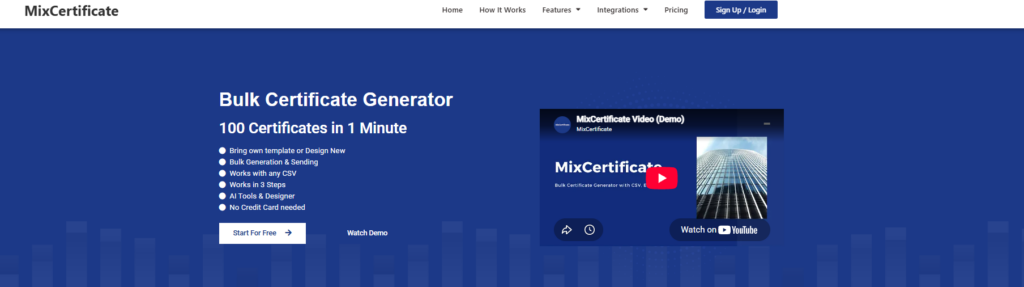
MixCertificate is built for the exact problem this guide is about. It takes a spreadsheet of names and turns it into a full batch of professional, checkable certificates without any manual data entry.
The process is simple. You upload your Google Sheet or connect the data directly, match the columns to fields on your certificate template such as name, course, date, or score, and generate the whole batch at once. Every certificate carries its own unique ID, so recipients and anyone checking the credential later can confirm it is real instead of just trusting an editable PDF.
Here is what tends to matter most when teams compare MixCertificate to spreadsheet add-ons and mail-merge tools:
- No add-on installation needed. The process happens outside the sheet itself, so there is nothing to install in Google Workspace and nothing that breaks when Google changes its add-on permissions.
- True bulk processing. Whether the sheet has 40 rows or 4,000, the whole batch generates at once instead of looping row by row.
- Flexible column mapping. Your fields do not need to match a rigid template. You map your own spreadsheet headers to the certificate design directly.
- Built-in verification. Each certificate resolves to a unique record, closing the gap that free mail-merge tools leave open.
- Simple, low-risk payment. Buying a plan on MixCertificate is set up so there is no payment risk to you as the buyer. Worth checking the pricing page directly if that matters to your decision.
- Regeneration without starting over. If you fix a name in the sheet later, you do not need to regenerate the whole batch, just that one record.
If your team’s real need is “we already track everything in Sheets and want verified certificates out the other end without babysitting a script,” MixCertificate is usually the fastest path from spreadsheet to finished result.
Pros:
- No add-on to install or maintain inside Google Workspace
- Handles large batches in one pass, from a few dozen rows to a few thousand
- Flexible column mapping that fits your existing sheet, not a rigid template
- Built-in unique ID or QR code verification on every certificate
- Fix and regenerate a single row without redoing the whole batch
- Low-risk payment setup for buyers
Cons:
- Not a free tool, so smaller one-off events may not need the full feature set
- Requires uploading or connecting your sheet rather than working entirely inside Google Sheets itself
2. Autocrat: Best Free Option Inside Google Workspace
Autocrat is a long-standing Google Sheets add-on. It merges spreadsheet rows into a Google Docs or Slides template, then exports the result as a PDF, and can email it automatically. It lives right inside Sheets, which appeals to teams who want to stay fully within Google Workspace with no outside tool.
The tradeoff is that Autocrat has no built-in verification. It merges data into a template and produces a file, but there is no unique ID, no QR code, and no way for an employer or institution to confirm the certificate is genuine later. It also depends on Google add-on permissions, which occasionally change and need re-authorizing. For low-stakes internal recognition, this is usually enough. For anything that needs to hold up as a real credential, it falls short.
Pros:
- Free to use
- Lives directly inside Google Sheets, so there is nothing new to learn
- Can auto-send certificates by email through Gmail
Cons:
- No verification system at all, no unique ID or QR code
- Depends on Google add-on permissions, which can change and break the setup
- Limited to what Google Docs or Slides templates can do visually
3. Certifier: Best for Light Course Creator Workflows
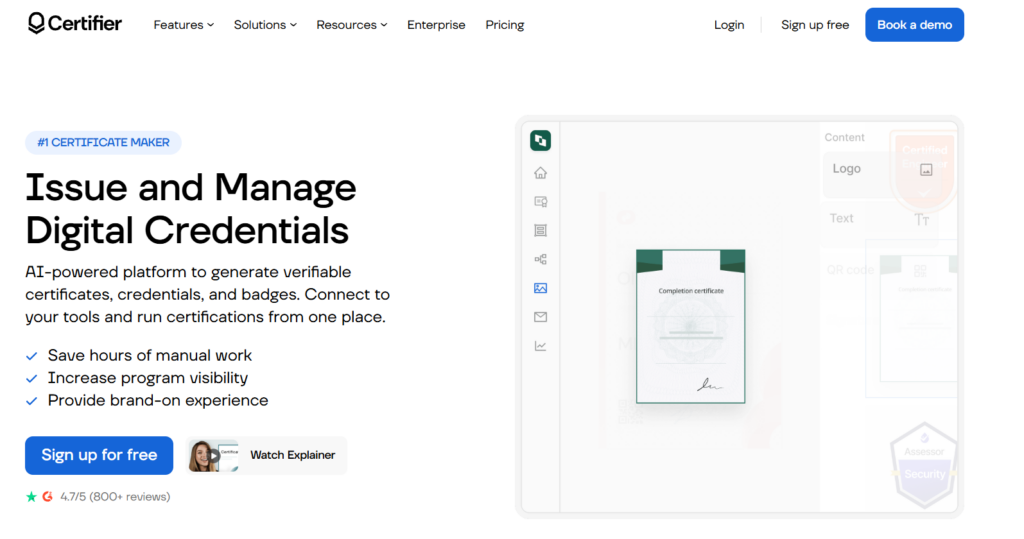
Certifier accepts a CSV export from Google Sheets and turns it into a batch of certificates through a simple web interface. It is aimed at solo educators and small course businesses rather than large operations teams, so setup is quick and the learning curve is small.
Verification is usually link-based rather than a formal registry. That is fine for most independent course settings, but a step below what enterprise or high-volume use may need. It sits at a reasonable middle point between a free add-on and a full enterprise platform.
Pros:
- Quick setup with a low learning curve
- Simple web interface built for solo educators and small businesses
- Supports bulk generation and auto-email delivery
Cons:
- Verification is only link-based, not a formal registry or unique ID system
- Less suited to large operations teams or high-volume issuing
- Fewer customization and integration options than enterprise platforms
4. Accredible: Best for Large-Scale Institutional Programs

Accredible supports CSV import and API connections, including from Google Sheets exports, and is built for universities and large corporate learning departments issuing at real scale. Its strength is deep integration with existing LMS and HR systems, plus an optional blockchain-backed verification layer for institutions that want extra tamper resistance.
The tradeoff is complexity and cost. Setting up Accredible usually involves a longer onboarding process aimed at IT and procurement teams at large institutions, which is more than a mid-size operations team or training provider usually needs just to turn a spreadsheet into certificates.
Pros:
- Deep integration with existing LMS and HR systems
- Built for real scale, suited to universities and large enterprise programs
- Optional blockchain-backed verification for extra tamper resistance
Cons:
- Longer onboarding process aimed at IT and procurement teams
- Higher cost than most mid-size teams need
- Overkill for a straightforward spreadsheet-to-certificate workflow
5. Google Docs Mail Merge Add-Ons: Best for Small One-Off Batches
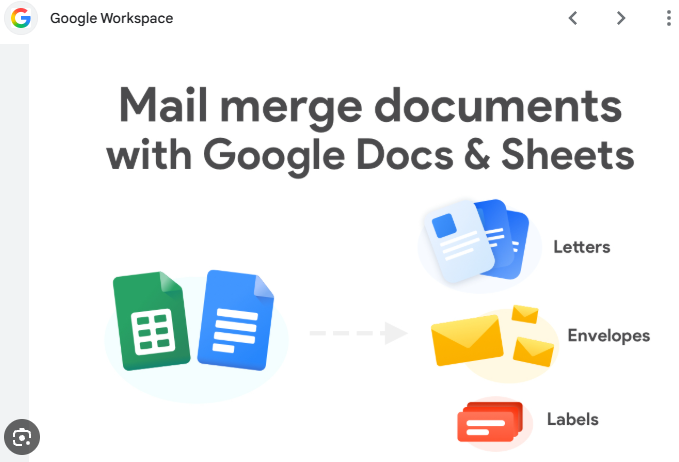
A handful of mail merge add-ons pair a Google Sheet with a Google Docs template to produce personalized documents, including certificates. These are free or low-cost and need no outside account, which makes them tempting for a single small event.
The ceiling is low though. Most of these tools process rows in a way that is closer to manual work than real automation at scale. Formatting is limited to what Google Docs supports, and there is no verification layer at all. Once you pass a few dozen recipients, or once someone needs to prove the certificate is real, this approach runs out of road fast.
Pros:
- Free or very low cost
- No outside account needed, works within Google Docs and Sheets
- Fine for a single small event with a handful of recipients
Cons:
- Not built for real batch automation at scale
- No verification layer at all
- Formatting limited to what Google Docs supports
6. Zapier Connected to a Design Tool: Best for Teams Already Automating Other Workflows

Some operations teams route Google Sheets data through Zapier into a design tool like Canva or a PDF generator whenever a new row is added. This can work well if your team already has Zapier automations built for other tasks and wants to add certificate generation to an existing pipeline.
The downside is that this approach is only as good as the tool on the receiving end. Zapier does not generate certificates on its own, it just moves data. You still need a destination tool with real bulk generation and verification, and setting up the automation correctly takes more time than using a purpose-built certificate generator.
Pros:
- Fits neatly into workflows that already use Zapier
- Flexible, can connect to almost any design or PDF tool
- Useful if certificate generation is just one part of a bigger automation
Cons:
- Zapier itself does not generate or verify certificates
- Result quality depends entirely on the connected tool
- Takes more setup time and technical effort than a purpose-built generator
Step-by-Step: A Typical Google Sheets to Certificate Workflow
No matter which tool you pick, the general steps look similar:
- Organize your sheet. Make sure each row is one recipient, with clear column headers for name, course or event title, date, and any other field you want on the certificate.
- Clean the data. Remove duplicate rows, fix inconsistent name formatting, and check that email addresses are correct if you plan to auto-send certificates.
- Choose or design a template. Decide on branding, layout, and which fields will pull from your spreadsheet.
- Map columns to fields. Connect each spreadsheet column to the matching certificate field, whether through an upload, an add-on, or a direct integration.
- Generate the batch. Run the bulk generation process and check a sample before sending the full set.
- Verify a few outputs. Spot-check a handful of certificates for correct spelling, dates, and formatting before you send them out.
- Deliver and store records. Send certificates automatically by email if that is supported, and keep the source sheet as your record of who got what and when.
Getting steps 1 and 2 right saves the most time later. A messy spreadsheet is the most common reason a bulk certificate batch goes wrong.
Common Mistakes Teams Make with This Workflow
- Skipping data cleanup. Inconsistent capitalization, extra spaces, or duplicate rows carry straight through into the certificates, and nobody notices until a recipient complains their name is wrong.
- Picking a tool with no verification. A nice-looking PDF with no unique ID or QR code is still just a plain file. If credentials matter for compliance, admissions, or hiring, that gap matters more than the design.
- Not testing with a small batch first. Running the full sheet of a thousand rows before checking the template and mapping on a sample of five is a common and avoidable mistake.
- Relying on a free add-on long term. Free Google Workspace add-ons can lose support, change permissions, or stop working. For a workflow you plan to repeat every month or every semester, a dedicated platform is usually more stable than a free plugin.
Frequently Asked Questions
Can I generate certificates directly from a Google Sheet without exporting it?
Some tools connect directly to a live Google Sheet, while others need a CSV export first. MixCertificate and similar dedicated platforms usually support a simple upload or connection step, mapping your existing columns to certificate fields without needing to restructure your data.
Is a certificate generated from a spreadsheet as credible as one made individually?
Yes, and often more so. A bulk-generated certificate with a unique ID or QR code tied to a verification record is usually more trustworthy than an individually designed certificate with no way to confirm it later.
What happens if I make a mistake in the spreadsheet after generating certificates?
This depends on the tool. Some platforms, including MixCertificate, let you fix a single row and regenerate just that certificate instead of redoing the entire batch, which matters a lot once you are working with hundreds or thousands of records.
Do I need coding skills to automate this?
No. Purpose-built tools handle the mapping and generation through a normal web interface. Coding only comes into play if you are building a fully custom automation through something like a script or Zapier, which is not necessary for most operations and education teams.
How much does a Google Sheets certificate generator typically cost?
Free add-ons exist but come with real limits around verification and reliability. Dedicated platforms are usually priced by usage or batch size, which tends to suit small and mid-size teams better than an enterprise contract built for large institutions.
Final Thoughts
If your certificate data already lives in a Google Sheet, the goal is finding a tool that works with that setup instead of forcing you to re-enter everything somewhere else. Free add-ons like Autocrat work fine for small, low-stakes internal use. Enterprise platforms like Accredible make sense for large institutions with dedicated IT support. For most operations teams, educators, and event organizers who need a fast, verified, professional result without a steep setup process, a dedicated bulk-generation platform is the more practical middle ground.
MixCertificate was built for exactly this workflow: spreadsheet in, verified certificates out, with column mapping, bulk processing, and a low-risk payment process for anyone buying a plan. If your Google Sheet already has a list of names waiting to become certificates, connecting it to mixcertificate.com is the fastest way to find out if it fits your workflow before you invest in anything more complex.
Also Read Related Blog :




4 Responses